On macOS, the built-in ping command continues until you stop it. This makes it useful when the internet drops for a few seconds and works again before you can investigate.
Run a continuous ping on macOS
Open Terminal and enter:
ping 1.1.1.1You should see replies similar to:
64 bytes from 1.1.1.1: icmp_seq=1 ttl=57 time=18.742 ms
64 bytes from 1.1.1.1: icmp_seq=2 ttl=57 time=19.106 ms
The command continues until you press Control-C. When it stops, macOS prints a summary that includes transmitted packets, received packets, packet loss, and round-trip times.
You can test another public address instead:
ping 8.8.8.8Do not run many unnecessary tests against third-party systems. One or two well-known public destinations are enough for a basic comparison.
Run a fixed number of requests
For a short test of 20 requests:
ping -c 20 1.1.1.1This exits automatically after sending the requested count. It is convenient for a quick snapshot but unlikely to capture an intermittent problem that happens hours later.
Understand the output
In a successful reply:
64 bytes from 1.1.1.1: icmp_seq=42 ttl=57 time=18.742 msicmp_seqis the sequence number for that request.ttlis a hop-limit-related value returned with the packet; it is not an internet-quality score.timeis the round-trip time for that reply, measured in milliseconds.
If a response does not arrive, macOS may print:
Request timeout for icmp_seq 43One timeout is not automatically a full internet outage. Look for repeated or consecutive failures, compare another target, and check whether applications or other devices failed at the same time.
For example, timestamped output could show a brief interruption followed by recovery:
2026-09-16 10:14:20 64 bytes from 1.1.1.1: icmp_seq=42 ttl=57 time=18.742 ms
2026-09-16 10:14:21 Request timeout for icmp_seq 43
2026-09-16 10:14:22 Request timeout for icmp_seq 44
2026-09-16 10:14:23 64 bytes from 1.1.1.1: icmp_seq=45 ttl=57 time=19.311 ms
This is illustrative output, not a real customer log. Two timeout lines may belong to one interruption; they should not automatically be counted as two outages.
Add readable timestamps
To attach the current date and time to every line:
ping 1.1.1.1 | while IFS= read -r line; do
  printf '%s %s\n' "$(date '+%Y-%m-%d %H:%M:%S')" "$line"
done
This makes it possible to compare timeout lines with a frozen video call, router log, or failure on another device.
Save the ping test to a file
Use tee to display and save the timestamped output:
ping 1.1.1.1 | while IFS= read -r line; do
  printf '%s %s\n' "$(date '+%Y-%m-%d %H:%M:%S')" "$line"
done | tee -a ~/Desktop/internet-ping.log
The -a option appends to the file rather than replacing its existing content. Press Control-C to stop.
Find timeout lines later:
grep -i "timeout" ~/Desktop/internet-ping.logRemember that ten consecutive timeouts may describe one ten-second interruption, not ten outages.
Ping the router and internet separately
Find the default gateway:
route -n get default | awk '/gateway:/{print $2}'Then run two Terminal windows. In the first, replace the example address with your gateway:
ping 192.168.1.1In the second:
ping 1.1.1.1Compare what happens during a dropout:
| Gateway ping | Public ping | Interpretation to investigate |
|---|---|---|
| Fails | Fails | Local Wi-Fi, Ethernet, adapter, Mac, or router path |
| Works | Fails | Modem, ISP, upstream route, or public target |
| Works | Works | DNS, application, or an event the ping tests did not capture |
The table gives starting hypotheses, not proof. Some devices or networks treat ICMP ping traffic differently from normal application traffic.
What ping can and cannot tell you
Ping can help show:
- whether one destination replied;
- approximate round-trip time for those replies;
- missed replies during the test;
- whether the router and a public target behave differently.
Ping does not directly measure:
- download or upload speed;
- whether DNS works;
- whether a particular website works;
- the quality of every internet route;
- the exact cause of a failed response;
- connectivity while the Mac is asleep.
A speed test and a ping test answer different questions. A speed test measures throughput during a short interval; continuous ping is better at exposing brief reachability gaps while it runs.
Common ping-test mistakes
- Treating one missed reply as proof of an outage.
- Testing only one destination and assuming it represents the entire internet.
- Counting timeout lines instead of grouping one interruption.
- Forgetting that closing Terminal ends the test.
- Ignoring sleep, shutdown, Wi-Fi switching, or VPN changes.
- Assuming low ping time means the connection never drops.
- Assuming high ping time and total disconnection are the same problem.
When ping is not enough for long-term monitoring
A Terminal test is ideal for learning and short investigations. It becomes cumbersome over several days because the output grows, outages must be grouped manually, and the process may stop.
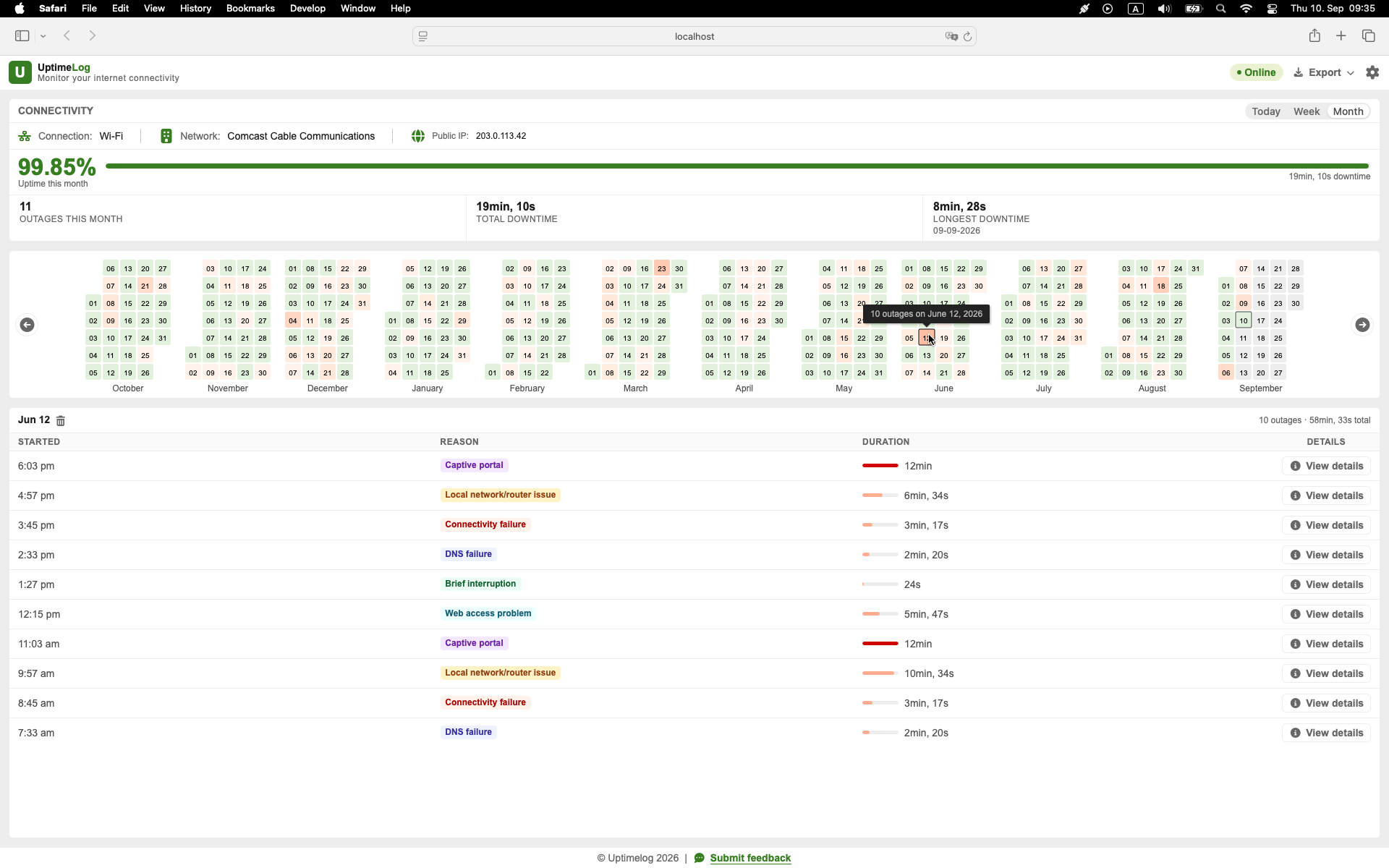
UptimeLog runs in the background on a Mac and records detected interruptions as events with start time, recovery time, duration, and connection details.
Basic monitoring and the latest five days of history are free. UptimeLog Pro is a $19 one-time purchase and adds full history, PDF reports, and CSV export.
macOS 12+ · Notarized by Apple · Free basic monitoring
For a longer manual and automatic setup, read How to Monitor Internet Outages on a Mac.
Start the test
For the fastest check, run:
ping 1.1.1.1If you need exact event history over days or weeks, save timestamped output or use an automatic outage monitor.