To monitor internet outages on a Mac, you can leave a continuous ping running in Terminal, save timestamped results to a log file, or use an app that records connection interruptions automatically. The right method depends on how often the problem happens and how much detail you need.
This guide starts with the simplest free method and then shows how to keep a more useful history over several days or weeks.
Start with a continuous ping on macOS
The quickest way to watch a connection is to send repeated requests to a public IP address. Open Terminal and run:
ping 1.1.1.1On macOS, ping continues until you stop it with Control-C. While the connection is available, you should see replies similar to:
64 bytes from 1.1.1.1: icmp_seq=42 ttl=57 time=18.742 msIf replies do not arrive, you may see lines such as:
Request timeout for icmp_seq 43Several consecutive timeouts can reveal a connection interruption that would be easy to miss otherwise. You can also test another public address:
ping 8.8.8.8A timeout does not automatically prove that your whole internet connection failed. The tested destination or the path to it may be unavailable, and some networks treat ping traffic differently from normal web traffic. That is why repeated failures and tests against more than one destination are more useful than a single missed reply.
Save ping results with timestamps
The basic ping output includes sequence numbers and response times, but it does not give every line a convenient date and wall-clock time. The following command adds a timestamp and saves a copy of the output to a file on your Desktop:
ping 1.1.1.1 | while IFS= read -r line; do
  printf '%s %s\n' "$(date '+%Y-%m-%d %H:%M:%S')" "$line"
done | tee -a ~/Desktop/internet-monitor.log
Leave the Terminal window open while you want to monitor the connection. Press Control-C to stop. You can then open internet-monitor.log and search for timeout to find missed replies.
This is a practical, free way to monitor a problem for a few hours. It also gives you exact times to compare with a video call, download, router event, or another device losing connectivity.
Why a long-running ping log is limited
A continuous ping is useful, but it becomes awkward when the problem happens only once every day or two.
- The log quickly grows into thousands of lines.
- You must search the raw output and group consecutive failures yourself.
- A ping log does not automatically calculate when an outage started, when it ended, or how long it lasted.
- Testing only one destination can produce a false impression if that destination stops responding.
- The command must remain running, and closing Terminal stops the test.
- Sleep and wake periods can look like connectivity failures unless you account for them.
- It is difficult to see patterns across days or weeks from raw text.
For a short investigation, these limitations may not matter. For recurring or infrequent problems, an automatic outage history is easier to interpret.
Automatically keep an internet outage history on your Mac
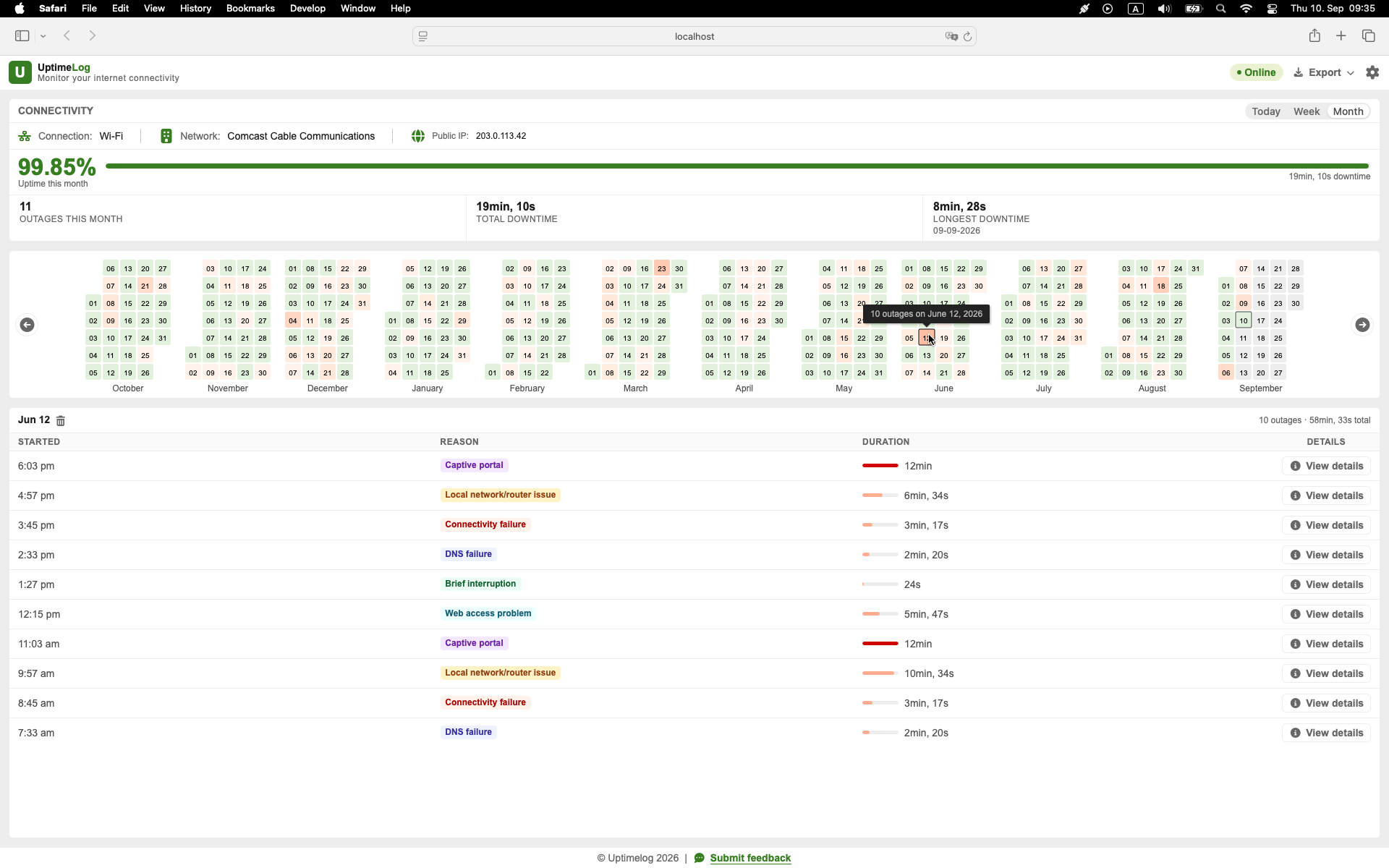
UptimeLog is an internet outage monitor for Mac built for this longer-running use case. It runs in the background and records detected internet interruptions instead of asking you to inspect continuous Terminal output.
For each recorded outage, you can see when it started, how long it lasted, and when the connection recovered. The dashboard also makes it easier to spot patterns across multiple days.
For a deeper guide to separating the Mac, local network, DNS, and ISP layers during a drop, see Internet Drops and Comes Back: Is It Your Mac, Wi-Fi, Router, DNS, or ISP?.
UptimeLog records details including:
- outage start and recovery time;
- outage duration;
- daily availability history;
- Wi-Fi or Ethernet connection type;
- public IP and ISP or network provider information when available;
- a calendar heatmap of detected interruptions.
Basic monitoring and the latest five days of history are free. UptimeLog Pro is a $19 one-time purchase and adds full history, PDF reports, and CSV export.
macOS 12+ · Notarized by Apple · Free basic monitoring
Do not hard-code an old versioned DMG URL if the homepage already uses a maintained download component or redirect.
How long should you monitor the connection?
Monitor for long enough to capture the problem more than once. One event can be an anomaly; several events can reveal a pattern.
- Several drops per hour: a few hours may be enough to collect useful examples.
- About one drop per day: monitor continuously for several days.
- Unpredictable weekly problem: keep the monitor running for at least one or two weeks.
- A problem at a particular time: include the period before and after that time so you can compare normal and failed behavior.
If your Mac sleeps, distinguish sleep periods from actual internet outages. A sleeping Mac cannot actively test the connection. UptimeLog should remain running, but macOS power behavior still determines when the computer is able to perform monitoring.
Does an outage log prove that the ISP caused the problem?
No. An outage recorded from a Mac shows that the Mac could not reach the tested internet destinations at that time. It does not by itself prove which part of the connection failed.
The problem could be anywhere along the path:
Mac → Wi-Fi or Ethernet → router → modem → ISP → wider internet → tested destinationThat distinction matters. A useful log documents what the Mac observed: timestamps, duration, frequency, and connection details. You can then combine that history with other checks to narrow down the cause.
For example:
- If several devices lose internet access at the same time, the problem is less likely to be limited to one Mac.
- If Ethernet remains stable while Wi-Fi drops, investigate the local wireless connection.
- If the router is unreachable during the event, the failure may be inside the local network.
- If the router remains reachable but public destinations fail, investigate the modem, ISP connection, DNS, or an upstream path.
- If only one public destination fails, test another destination before treating it as a general outage.
The wording should remain precise: an outage report is a record of connection failures observed from the Mac, not automatic proof that the ISP was responsible.
What information should you record for recurring outages?
Whether you use Terminal or an automatic internet connection monitor, collect enough information to compare events:
- exact start time;
- recovery time and total duration;
- how often the interruption occurs;
- whether the Mac was using Wi-Fi or Ethernet;
- whether other devices were affected;
- whether the router or default gateway was still reachable;
- whether more than one public destination failed;
- whether DNS lookups failed while direct IP connections still worked;
- public IP and ISP information when available;
- any pattern by time of day or day of the week.
This turns “the internet sometimes drops” into a concrete history. It can make your own troubleshooting more systematic and give an ISP support agent specific times to investigate.
For another example of finding a local hardware cause, read USB-C Ethernet Keeps Disconnecting on Mac: How I Diagnosed Mine.
Continuous ping or an automatic outage monitor?
Use continuous ping when you need a quick test, are comfortable with Terminal, and expect the problem to happen soon. It is transparent, free, and often enough to confirm that brief failures are occurring.
Use automatic monitoring when the interruptions are rare, you need to monitor the connection over several days, or you want a readable outage history without analyzing raw logs. Reports are especially useful when you need to communicate a recurring pattern to someone else.
Neither method alone identifies every possible cause. The goal of monitoring is first to answer three basic questions reliably:
- When did the connection become unavailable?
- How long did the interruption last?
- Does it follow a repeatable pattern?
Once you know that, you can investigate the Mac, Wi-Fi, adapter, router, modem, or ISP with much better evidence.
Start monitoring internet outages on your Mac
For a quick test, start with the continuous ping command above. If the problem happens infrequently and you want to track internet downtime across days or weeks, use an automatic history instead.
UptimeLog runs quietly on your Mac and records detected internet interruptions with timestamps, durations, and connection details.