Brief interruptions are hard to diagnose because they often finish before you open Terminal. A speed test run afterward describes the connection at that moment, not the interruption that disconnected a meeting, online game, remote session, or upload a few minutes earlier.
To diagnose an intermittent internet connection, check the path in layers. Start with the Mac and its network interface, then check the local gateway, name resolution, direct internet connectivity, and ordinary web access. This helps test if the internet problem is on your end or with the ISP instead of simply asking whether the internet is “up.”
Follow the connection path
Each part of this path can fail independently. A Mac can remain associated with Wi-Fi while the router has lost its upstream connection. DNS can fail while direct TCP connections still work. A captive portal or web filter can return a page even though normal internet access is not available.
What each check can tell you
The table below separates checks that you can run yourself from the layered checks UptimeLog performs when its normal connectivity probe fails. A result narrows the likely failure area; it does not automatically identify a defective component.
| Check | What it tests | What failure may indicate |
|---|---|---|
| Network interface | Whether the Mac has an active interface and a usable configuration. UptimeLog records Wi-Fi or Ethernet context when available; this is also worth checking manually. | Mac, adapter, interface, or local configuration problem. |
| Local gateway | Whether the Mac can reach the current default gateway. UptimeLog uses ICMP and, when needed, TCP ports 80 or 443. | Wi-Fi, Ethernet, adapter, or router-side problem. |
| System DNS | Whether the operating system resolver can resolve a test hostname. | Configured resolver or local DNS path failure. |
| Public DNS | Whether an independent resolver such as 1.1.1.1, 8.8.8.8, or 9.9.9.9 can be queried directly. | Broader DNS or upstream-connectivity problem when this also fails. |
| TCP target | Whether a TCP connection can be established to public internet targets on port 443. | Upstream internet or routing failure when DNS and the gateway do not explain the event. |
| HTTP target | Whether the connectivity endpoint returns the expected empty HTTP 204 response. | Captive portal, web access problem, or broader connectivity failure. |
How to check what failed during the next internet drop
When the next interruption starts, work through these commands in separate Terminal windows. Replace the example gateway with the address reported by your Mac.
1. Find the default gateway
route -n get defaultLook for the gateway: line. Do not assume that the gateway is 192.168.1.1; many networks use a different address.
2. Test the gateway
ping -c 4 192.168.1.1Substitute the actual gateway. If it does not answer, the Mac may have lost its local Wi-Fi or Ethernet path, the adapter may be unstable, or the router may be unavailable. Some gateways filter ICMP, so treat this as evidence rather than a standalone verdict.
3. Test a public IP address
ping -c 4 1.1.1.1If the gateway responds but the public IP does not, the problem is farther along the path or the target is filtering ICMP. Test more than one target before drawing a conclusion.
4. Test the system DNS resolver
dig +time=2 +tries=1 example.comThis uses the DNS configuration supplied to macOS. A timeout or server failure here can explain why websites fail even when direct IP connectivity works.
5. Test an independent public DNS resolver
dig @1.1.1.1 +time=2 +tries=1 example.comIf the system resolver fails but this direct query works, investigate the configured DNS service or local DNS path. If both fail, look farther upstream as well as at the local network.
6. Test normal HTTP connectivity
curl -I --max-time 5 https://example.comA successful DNS lookup does not guarantee that a normal web connection works. HTTP can still fail because of routing, a captive portal, filtering, or an application-level problem.
Useful combinations include these:
- Gateway unreachable: focus first on the Mac, adapter, Wi-Fi or Ethernet path, and router.
- Gateway reachable but public IP unreachable: the local network is responding, while the WAN or upstream path may be failing.
- Public IP reachable but system DNS fails: the configured resolver or DNS path is a likely area to investigate.
- DNS works but HTTP fails: check for a captive portal, web filtering, or a problem with the tested web path.
A single failed ping is not automatically proof of an outage. ICMP may be filtered, and one destination can fail independently. Compare several checks and repeat them while the interruption is happening.
Why manual testing is difficult
Manual commands are useful when you are sitting at the Mac during the failure. They become much less practical when internet drops randomly while you are away, asleep, or focused on another task. Keeping several Terminal windows open is cumbersome, and raw output still needs to be grouped into outage start times, recovery times, and durations.
Several days of observations are usually more useful than one failed command. You also need to account for sleep, wake, changes between Wi-Fi and Ethernet, VPNs, and other interface changes. The goal is to record repeated patterns with timestamps, not to preserve an unreadable wall of terminal output.
Automatically identify and record internet connection failures on a Mac
UptimeLog monitors the connection from your Mac and starts layered diagnostics when its normal HTTP connectivity probe fails. It checks system DNS, direct public DNS, TCP connections to public targets, a captive-portal or HTTP endpoint, and the current default gateway.
It then assigns a best-effort classification using the combined results. The application uses labels such as Local network/router issue, DNS failure, Connectivity failure, Web access problem, Captive portal, and Brief interruption. These labels describe the observed check pattern; they do not guarantee that a particular cable, router component, or ISP device is defective.
For example, a record can show that the local gateway remained reachable while public DNS, TCP, and HTTP checks failed. Another event may show that the configured DNS resolver failed while public DNS and TCP remained available. If the Mac could not reach its local gateway, the evidence points toward the local path, although the exact cause still requires context.
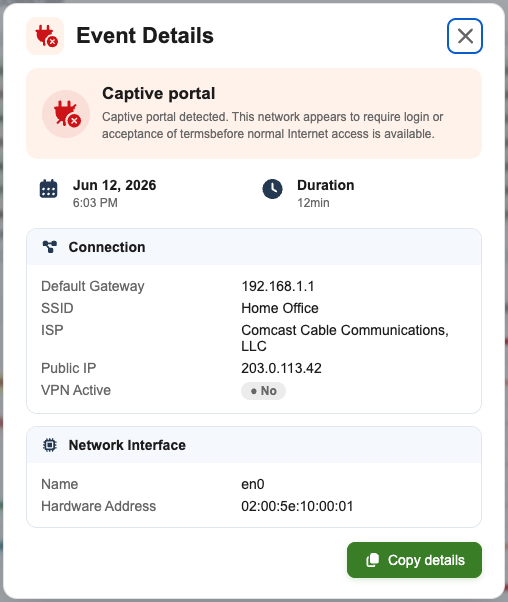
The history also preserves when the interruption started, how long it lasted, and connection details available to the app. That makes it practical to track intermittent internet outages across several days instead of waiting beside the Mac.
Mac connected to Wi-Fi but no internet
The Wi-Fi icon tells you that the Mac is associated with the wireless network. It does not confirm that the router, DNS, or wider internet is reachable. That is why a Mac can say it is connected while a browser, video call, or upload cannot reach its service.
If the Mac cannot reach the local gateway while other devices continue working, the evidence points toward the Mac, its interface, adapter, or Wi-Fi path rather than an ISP-wide outage. If the gateway is reachable but upstream checks fail for multiple devices, investigate the router, modem, ISP connection, or upstream route instead. These are useful directions for investigation, not absolute diagnoses.
What to record before contacting your ISP
Before contacting support, collect a history that lets someone compare the events with router or provider records:
- outage start time, recovery time, and duration;
- frequency and any pattern by time of day;
- whether the local gateway remained reachable;
- which system DNS and public DNS checks succeeded or failed;
- whether public TCP or HTTP targets remained reachable;
- whether the Mac used Wi-Fi or Ethernet;
- whether other devices were affected;
- changes to the network interface or public IP, when available.
This is substantially more useful than saying, “My internet sometimes stops working.” Record internet outage timestamps, duration, classifications, and connection context in one history. You can also document internet outages for your ISP and review the sample UptimeLog PDF report before exporting your own report.
The report is evidence of what the Mac observed. Even when the gateway stayed reachable and upstream checks failed, that is strong troubleshooting information rather than absolute proof of a specific ISP fault.
Why does my internet drop and come back by itself?
Possible causes include the Mac or its adapter, unstable Wi-Fi, a router or modem restart, DNS problems, an ISP interruption, or an upstream routing failure. The same symptom can come from different layers, so the gateway, DNS, TCP, and HTTP results need to be compared during the event.
How can I tell if the problem is my router or ISP?
Test the local gateway and independent internet targets at the same time. A reachable gateway with failed public DNS, TCP, and HTTP checks points to a different part of the path than an unreachable gateway. Testing another device can add useful context.
Why does my Mac say it is connected to Wi-Fi but have no internet?
Wi-Fi association only confirms the wireless link to the access point. It does not confirm router access, DNS resolution, or end-to-end internet connectivity.
Can a speed test detect brief internet outages?
A speed test only observes the connection while it is running. It can miss an outage that finished before the test began, and it is not designed to keep a timestamped history of intermittent interruptions.
Can UptimeLog tell whether the problem is Wi-Fi, DNS or the ISP?
UptimeLog compares gateway reachability with system DNS, public DNS, TCP, and HTTP checks, then assigns a best-effort classification. The results can narrow down the failing layer, but they cannot identify every physical cause with certainty or prove that a particular ISP device failed.
Can an outage report prove that my ISP caused the problem?
No report from a single Mac can provide absolute proof of a specific ISP fault. It can record the outage times and show patterns such as a reachable gateway while upstream checks failed. That gives ISP support concrete events to investigate.
Catch the interruption even when you are not watching
UptimeLog monitors the connection from your Mac, records detected outages and keeps the history available for troubleshooting and reports.
macOS 12+ · Notarized by Apple · Free basic monitoring