The useful question is therefore not simply “Is Wi-Fi connected?” It is: Which part of the path stops working when the interruption occurs?
Understand the connection path
A typical request follows this path:
Mac → Wi-Fi access point/router → modem or access line → ISP → wider internet → serviceThe Mac may remain connected to the first device while something later in the path fails. DNS and VPN software can also prevent applications from reaching services even when basic IP connectivity still works.
Check whether other devices are affected
During the next interruption, try the same connection from a phone or another computer on the same Wi-Fi. Disable mobile data temporarily so the phone cannot hide the Wi-Fi failure by switching to cellular service.
- All Wi-Fi devices fail: investigate the router, modem, ISP, or the common wireless network.
- Only the Mac fails: investigate the Mac's Wi-Fi state, VPN, software, DHCP configuration, or local hardware.
- One website or application fails: investigate that service before treating it as a whole-internet outage.
- Ethernet works while Wi-Fi fails: investigate the wireless path rather than assuming the ISP is down.
This comparison is most useful when performed during the event, not hours later.
Test the router while the internet is failing
Find the default gateway in Terminal:
route -n get default | awk '/gateway:/{print $2}'The result may look like 192.168.1.1. Ping the reported address:
ping 192.168.1.1In a second Terminal window, ping a public address:
ping 1.1.1.1Compare the results during an interruption:
| Router | Public target | What to investigate |
|---|---|---|
| Unreachable | Unreachable | Wi-Fi link, Mac, router, adapter, or local network |
| Reachable | Unreachable | Modem, ISP, upstream path, or public target |
| Reachable | Reachable | DNS, VPN, application, or a failure the ping tests did not capture |
This is a diagnostic hint, not proof. Some routers or external systems treat ping differently from normal web traffic.
Check DNS separately
If the public IP test works but websites still fail, test name resolution:
nslookup example.comCompare it with:
ping 1.1.1.1Repeated cases where direct IP reachability works while DNS lookups fail make DNS a plausible cause. One isolated result is not conclusive because caches and network policies can affect both tests.
Temporarily compare VPN on and off
A VPN changes the path and often the DNS configuration used by applications. If company policy permits it, note whether the problem occurs:
- only while the VPN is connected;
- immediately after it reconnects;
- both with and without it;
- only in applications routed through the VPN.
Do not disable a required work VPN during sensitive activity. Record the state and test in an appropriate, controlled period.
Compare Wi-Fi with Ethernet
If your Mac supports Ethernet directly or through an adapter, test the same location and time period over a wired connection.
- Stable Ethernet with unstable Wi-Fi points toward the wireless path.
- Wi-Fi and Ethernet failing together points beyond Wi-Fi, though the router or Mac can still be involved.
- Failure only through one adapter suggests testing a different cable, port, or adapter.
Do not change several variables at the same time. Otherwise an improvement will not tell you which change mattered.
Use Wireless Diagnostics on macOS
Apple includes Wireless Diagnostics for analyzing the Wi-Fi connection. Hold Option, click the Wi-Fi status icon in the menu bar, and choose Open Wireless Diagnostics. Follow the onscreen instructions.
Wireless Diagnostics does not change the network settings. It can report detected issues and creates a diagnostics archive that may be useful to an administrator or support person.
Use it for the wireless side of the problem. It does not replace a multi-day internet outage history when the failure is rare.
Record exactly when the external connection drops
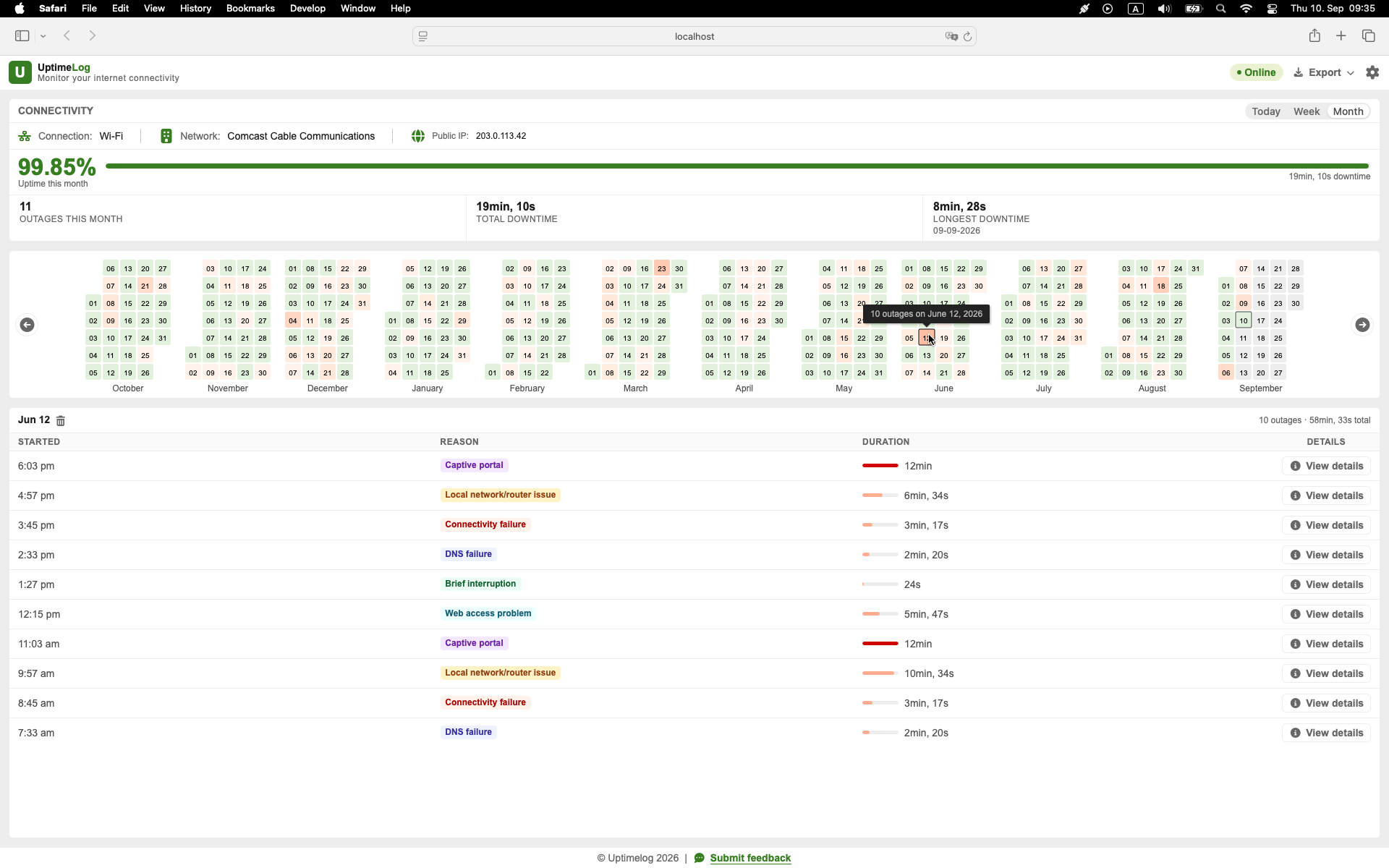
Short failures are hard to catch manually. UptimeLog runs in the background on a Mac and records detected internet interruptions with start time, recovery time, duration, and connection details.
The important wording is “internet interruption observed from the Mac.” A Wi-Fi icon remaining connected does not contradict an external connectivity failure.
Basic monitoring and the latest five days of history are free. UptimeLog Pro is a $19 one-time purchase and adds full history, PDF reports, and CSV export.
macOS 12+ · Notarized by Apple · Free basic monitoring
Look for a recurring pattern
After several events, compare:
- time of day;
- Wi-Fi network and location;
- interface type;
- public IP or provider information;
- VPN state;
- whether another device failed;
- whether Ethernet behaved differently;
- duration and frequency.
Patterns guide the next experiment. If every failure happens in one room, investigate coverage. If every device fails simultaneously, investigate the shared router/modem/ISP path. If only the Mac fails across several networks, focus on the Mac or its software.
Avoid restarting everything before collecting evidence
Restarting the Mac and router may restore connectivity, but doing it immediately destroys the chance to compare what was reachable during the failure.
When safe, first capture:
- exact time;
- router reachability;
- public-IP reachability;
- DNS result;
- another-device result;
- Wi-Fi versus Ethernet behavior.
Then restart or change one component at a time.
Choose the next action from the evidence
- Mac cannot reach the router: investigate Wi-Fi signal, local configuration, access point, and Mac.
- Mac reaches the router but not public targets: investigate the router's upstream link, modem, or ISP.
- Direct IP works but DNS fails: investigate DNS configuration.
- Only VPN traffic fails: investigate the VPN path or client.
- Only one app fails: investigate that app or remote service.
- All household devices fail together: preserve timestamps and contact the provider with a clear event history.
For the broader decision tree, read Random Internet Disconnects: Router, Wi-Fi, Mac or ISP?.
Start monitoring the failures
The Wi-Fi icon is only one part of the diagnosis. Compare the router, a public target, DNS, Ethernet, and another device at the same time, then keep a history if the problem is unpredictable.