For layered checks during a brief interruption, continue with Internet Drops and Comes Back: Is It Your Mac, Wi-Fi, Router, DNS, or ISP?. This guide focuses on the checks UptimeLog uses to compare the local gateway, DNS, TCP, and HTTP paths.
The fastest way to narrow the cause is to test from the Mac outward. First determine whether one application, one device, the local network, or the external connection failed. Then change one variable at a time.
Use this decision table first
| What you observe during the failure | Most useful next check |
|---|---|
| Only one application fails | Test another service and check the application's status or diagnostics. |
| Only one Mac fails | Compare VPN, Wi-Fi/Ethernet, adapters, and another network. |
| All Wi-Fi devices fail but Ethernet works | Investigate wireless coverage, interference, access point, or mesh roaming. |
| Mac cannot reach the router | Investigate the Mac-to-router path and router. |
| Router replies but public targets fail | Investigate modem, ISP, upstream route, or target. |
| Public IP works but domain lookup fails | Investigate DNS. |
| Every device fails together | Investigate shared router, modem, access line, or ISP. |
| Only one adapter or cable correlates with failures | Test another cable, port, and adapter. |
Each row identifies the next area to investigate, not a guaranteed diagnosis.
Step 1: decide whether it is one application or the whole connection
When the symptom occurs, test something independent from the affected application. If Zoom freezes, try another website and a message service. If one website fails, try a public IP and another domain.
If only one remote service fails while everything else works, a general internet outage is less likely. If unrelated services fail at the same time, continue outward.
Step 2: compare another device
Test a phone or another computer on the same local network. Disable cellular data on the phone for the test.
- Only the Mac fails: focus on the Mac, its interface, adapter, VPN, or software.
- Several devices fail: focus on shared network equipment or the upstream connection.
- Only wireless devices fail: focus on Wi-Fi or the access point.
This one test divides the investigation more effectively than repeatedly restarting the Mac.
Step 3: test the router
Find the default gateway on macOS:
route -n get default | awk '/gateway:/{print $2}'Ping the result, replacing this example:
ping 192.168.1.1If the router becomes unreachable during the same event, the failure is within or before that local path: Wi-Fi, Ethernet, an adapter, the Mac, or the router itself.
If the router remains reachable, continue to an external target.
Step 4: test a public destination
In another Terminal window:
ping 1.1.1.1If the router replies while repeated external checks fail, the local Mac-to-router path remained available. Investigate the router's upstream connection, modem, ISP, route, or selected public target.
Do not treat one timeout as proof. Compare repeated failures, another destination, applications, and other devices.
For a deeper command guide, read Continuous Ping on Mac: Test for Internet Dropouts.
Step 5: test DNS
If direct public-IP access works but websites fail, run:
nslookup example.comRepeated DNS failures during otherwise working direct connectivity suggest investigating the configured resolver, router DNS forwarding, VPN, or provider DNS.
DNS is not the explanation if the Mac cannot reach the router or any public IP at all.
Step 6: compare Wi-Fi and Ethernet
Test one interface at a time under similar conditions.
- Ethernet stable and Wi-Fi unstable: investigate coverage, interference, access-point placement, or roaming.
- Both interfaces fail together: investigate a common device or upstream path.
- Only one USB-C adapter fails: test another cable, port, and adapter.
- The Mac fails across several unrelated networks: investigate the Mac or software configuration.
Read Wi-Fi Connected but Internet Keeps Dropping on Mac for the Wi-Fi-specific process.
Step 7: account for VPN and security software
Record whether a VPN is connected during every incident. If policy allows, compare an appropriate test period with and without it.
Do not conclude that the VPN is responsible merely because reconnecting it restores service; reconnecting can also refresh routes and DNS configuration. Repeat the comparison and change only one variable.
Step 8: inspect physical components
For wired or docked setups, check:
- Ethernet cable seating and condition;
- USB-C or Thunderbolt port;
- adapter or dock temperature and stability;
- external power, if required;
- behavior with another adapter or cable;
- behavior without the dock.
Hardware faults can be intermittent and can resemble an ISP problem.
Capture the failure before changing anything
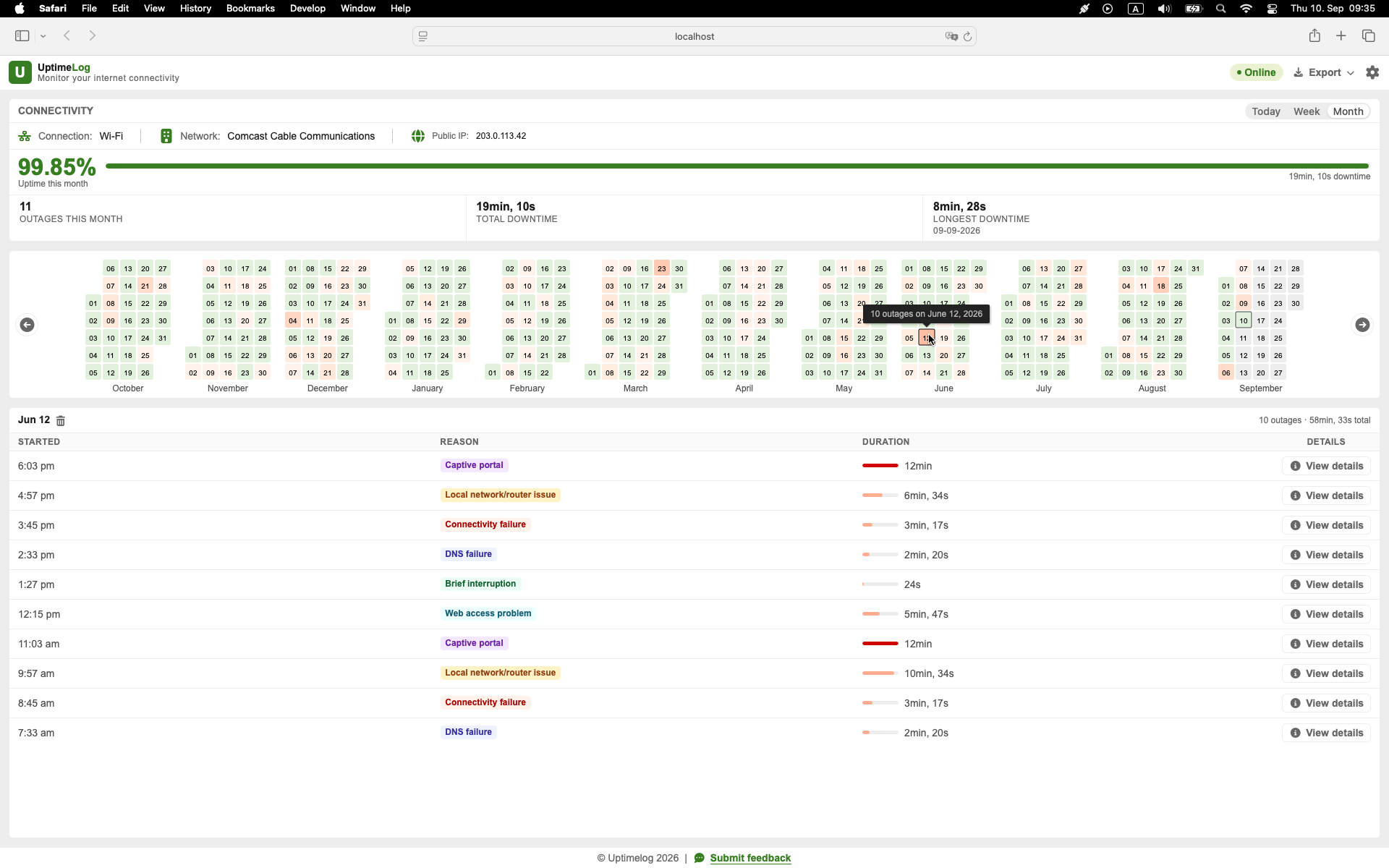
Random problems are easier to investigate when the timestamps are reliable. UptimeLog runs in the background on a Mac and records detected internet interruptions with start time, recovery time, duration, and connection details.
Use the timestamps to repeat the same comparisons during representative events. Basic monitoring and the latest five days of history are free. UptimeLog Pro is a $19 one-time purchase and adds full history, PDF reports, and CSV export.
macOS 12+ · Notarized by Apple · Free basic monitoring
Build a conclusion from repeated evidence
Do not assign a cause from one event. Look for repeated combinations:
Event A: Mac and phone fail; router replies; public target fails
Event B: Mac and phone fail; router replies; public target fails
Event C: Mac and phone fail; router replies; public target fails
That repeated pattern is much stronger than “the internet felt slow.” It still does not identify the precise provider component, but it narrows the failure beyond the local Wi-Fi association.
Useful repeated fields include interface, gateway reachability, affected devices, DNS result, public IP, VPN state, and event duration.
Avoid these troubleshooting mistakes
- Restarting every device before recording the failure.
- Changing DNS, router, cable, and VPN simultaneously.
- Assuming Wi-Fi connected means internet available.
- Assuming every ping timeout is an outage.
- Testing only one public destination.
- Ignoring sleep and network-interface changes.
- Blaming the ISP before checking whether other devices fail.
- Blaming the Mac when every device fails simultaneously.
When to contact the ISP
Contact the provider when repeated events show that:
- several devices lose external connectivity together;
- the router remains locally reachable;
- the problem appears on both Wi-Fi and Ethernet;
- public destinations repeatedly become unavailable;
- the failures occur across a documented period.
Provide exact timestamps, time zone, duration, frequency, affected devices, and a concise summary. Describe the record as outages observed from your network, not conclusive proof of provider fault.
See How to Document Internet Outages for Your ISP.
Start at the nearest layer and move outward
Test in this order:
Application → Mac → Wi-Fi/Ethernet → router → modem/ISP → external serviceStop guessing, record the event, and compare what works at the same moment. Repeated evidence will usually narrow the problem to a manageable part of the path.