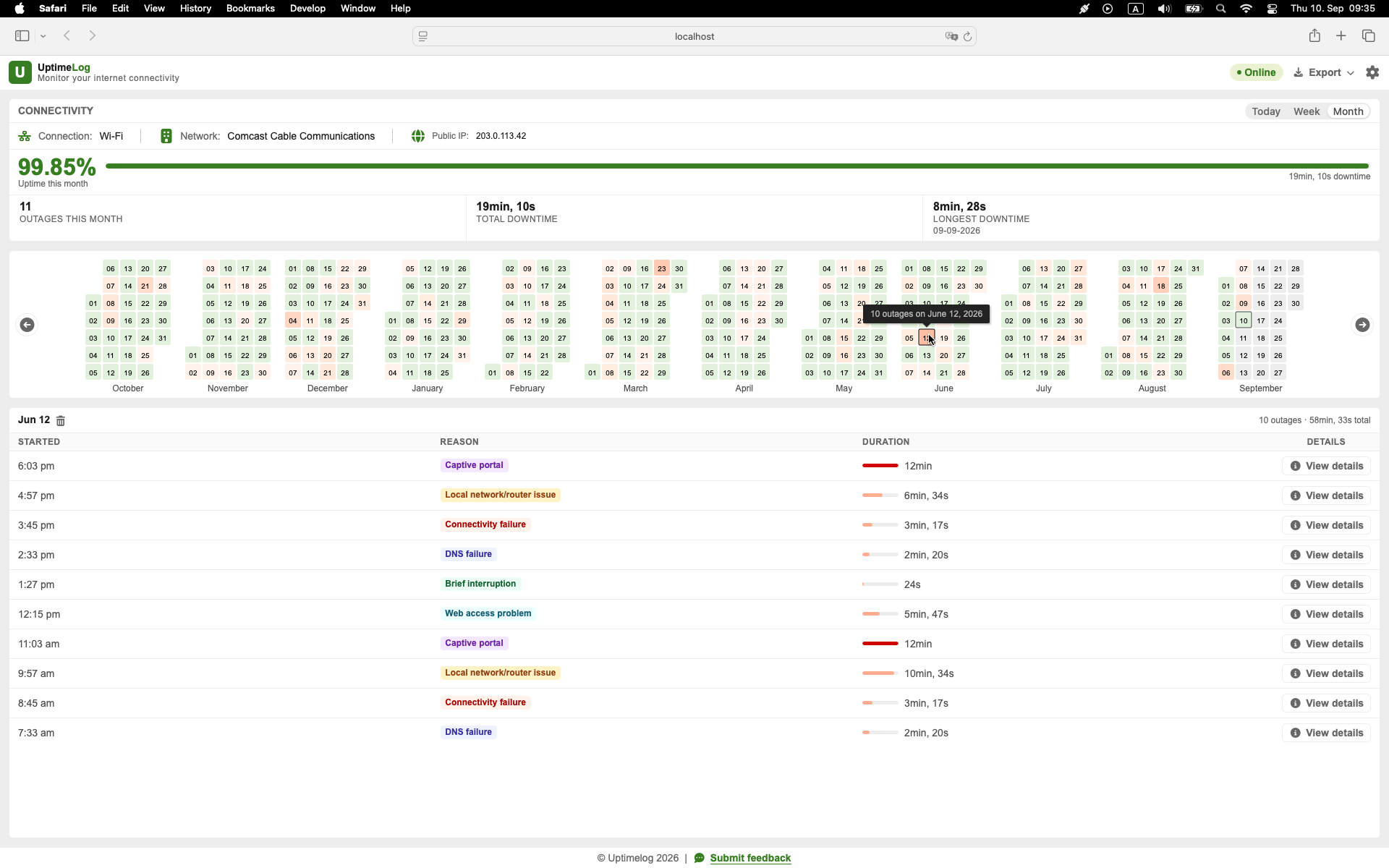
The first goal is not to guess whether the ISP, Wi-Fi, or Mac is responsible. It is to record when the interruption happens and compare what still works during those few seconds. That gives you evidence to separate a local device problem from a wider connection failure.
Confirm that the connection is actually dropping
Start by writing down exactly what you observe. A frozen video or webpage does not always mean the entire internet connection failed. The application itself, a remote server, DNS, or the local network could be responsible.
For each incident, record:
- the exact time;
- approximately how long it lasted;
- which application failed;
- whether other websites or services also failed;
- whether another device lost internet access;
- whether the Mac was using Wi-Fi or Ethernet;
- whether a VPN was active.
One isolated event rarely identifies the cause. Several timestamped events can reveal that the interruption happens only on one Mac, only over Wi-Fi, or across the whole household.
Test the router and the internet separately
A useful first comparison is to monitor your router and a public internet address at the same time.
Find the default gateway on macOS:
route -n get default | awk '/gateway:/{print $2}'The result is usually a private address such as 192.168.1.1 or 192.168.178.1. In one Terminal window, ping that address, replacing the example with the address reported by your Mac:
ping 192.168.1.1In another Terminal window, test a public address:
ping 1.1.1.1Leave both tests running until the short interruption occurs, then compare them.
| Router ping | Public ping | What it suggests |
|---|---|---|
| Fails | Fails | The problem may be Wi-Fi, Ethernet, an adapter, the Mac, or the router. |
| Works | Fails | The local path to the router survived; investigate the modem, ISP, upstream path, or public target. |
| Works | Works | The affected application or DNS may be involved, or the interruption may have been too brief for these tests to capture. |
| One missed reply | One missed reply | Not enough evidence by itself; look for repeated or consecutive failures. |
These are clues, not absolute proof. Routers and public hosts can deprioritize or block ping traffic, and one target can fail while the rest of the internet remains reachable.
Check whether other devices disconnect too
When the next interruption happens, immediately try the same website or service on a phone using the same Wi-Fi network. Make sure the phone has not silently switched to mobile data.
- Only the Mac is affected: investigate the Mac's Wi-Fi connection, Ethernet adapter, VPN, firewall, or the affected application.
- Several devices are affected: focus on the router, modem, ISP connection, or a problem common to the network.
- Only Wi-Fi devices are affected: investigate signal quality, interference, the access point, or movement between mesh nodes.
- Only one application is affected: the internet connection may be fine; investigate that application or service.
This simple comparison is often more informative than restarting every device at once. Changing several things simultaneously can make the problem disappear without revealing what caused it.
Compare Wi-Fi with Ethernet
If possible, use Ethernet for a while and compare it with Wi-Fi under otherwise similar conditions.
If Ethernet stays stable while Wi-Fi drops, the ISP connection may not be the immediate cause. Look at wireless signal strength, interference, access-point placement, or mesh roaming. If both Wi-Fi and Ethernet lose external connectivity at the same time, move your attention toward the router, modem, or ISP.
Ethernet does not automatically eliminate local hardware problems. A loose cable, unreliable USB-C hub, or faulty network adapter can also produce brief interruptions. If the problem appears only with one adapter or port, test another cable, port, and adapter separately.
Read the related guide: USB-C Ethernet keeps disconnecting on Mac: how to diagnose the adapter.
Check whether DNS is the problem
DNS translates names such as example.com into IP addresses. A DNS failure can make websites appear offline even when the Mac can still reach the internet directly.
During an interruption, compare a direct public-IP test:
ping 1.1.1.1with a DNS lookup:
nslookup example.comIf direct IP connectivity repeatedly works while name lookups fail at the same time, DNS becomes a plausible cause. It is not conclusive from one test: cached answers, firewalls, and the chosen public address can affect the result.
Keep a record instead of relying on memory
Short interruptions are easy to underestimate. “It happens all the time” is difficult to troubleshoot; “it happened at 09:14, 14:37, and 18:02, for 12–28 seconds each time” is concrete.
UptimeLog runs in the background on a Mac and records detected internet interruptions with their start time, duration, recovery time, and connection details. It gives you an outage history without leaving Terminal output open and searching it manually.
The record does not automatically identify the guilty component. It tells you when the Mac observed loss of connectivity, giving you reliable timestamps to compare with other devices, router logs, meetings, or ISP support records.
Track the pattern for several days
If the connection drops several times per hour, a short test may be enough. If it happens once a day or less, monitor continuously for at least several days.
Look for patterns such as:
- interruptions at the same time each day;
- failures only while using Wi-Fi;
- failures only through a particular USB-C adapter;
- several short interruptions grouped together;
- problems during large uploads or video calls;
- a public-IP change near the event;
- every device failing simultaneously.
For a complete monitoring setup, read How to Monitor Internet Outages on a Mac.
Common causes of brief internet drops
The same symptom can have many causes:
- weak or unstable Wi-Fi;
- wireless interference or mesh roaming;
- router or modem instability;
- a damaged Ethernet cable;
- an unreliable USB-C adapter or hub;
- ISP maintenance or line problems;
- DNS failures;
- VPN or security software;
- switching between network interfaces;
- an application or remote service problem;
- the Mac sleeping or waking.
Avoid selecting a cause from this list before you collect evidence. The router/public-target comparison and multi-device test narrow the possibilities more reliably than the symptom alone.
What to do after you capture an interruption
Use the evidence to choose the next step:
- Only one application failed: check that service and the application's own status or logs.
- Only the Mac failed: test without a VPN, compare Wi-Fi and Ethernet, and inspect adapters or hubs.
- Only Wi-Fi failed: use macOS Wireless Diagnostics and investigate coverage or interference.
- The router became unreachable: focus on the local network, router, cable, adapter, or Wi-Fi path.
- The router stayed reachable but public targets failed: investigate the modem, ISP, or upstream connection.
- Direct IP access worked but DNS failed: investigate the configured DNS resolver.
- All devices failed together: save the times and contact the ISP with a clear event history.
Apple's Wireless Diagnostics can analyze the Mac's Wi-Fi connection without changing network settings. On a Mac, hold Option, click the Wi-Fi status icon, and choose Open Wireless Diagnostics.
Start recording the drops
For a problem that happens soon and often, two Terminal ping tests may be enough. For a problem that occurs unpredictably across days, an automatic history is easier to use.
UptimeLog provides free basic monitoring and the latest five days of history. Pro is a $19 one-time purchase and adds full history, PDF reports, and CSV export.
macOS 12+ · Notarized by Apple · Free basic monitoring