A speed test is a short snapshot. It tells you how much data the connection transferred while the test was running, but it cannot show what happened five minutes earlier or guarantee that the connection will remain available continuously. A five-second interruption can be over before you open a browser to investigate.
The useful question is therefore not only whether the connection is fast. It is whether the Mac can keep reaching the local network, DNS, and external services without interruption.
Why a speed test can miss brief connection drops
Most speed tests run for a limited period and primarily measure throughput: how quickly data moves once a transfer is underway. Some also measure latency during the test, but that is still a sample of one interval. The test does not monitor the connection continuously, and it usually cannot explain which part of the network path failed during an earlier drop.
These are different properties:
- Bandwidth: the volume of data the connection can transfer over time.
- Latency: how long a packet takes to travel to a destination and back.
- Packet loss: packets that do not reach the destination or return.
- Reachability and availability: whether the destination can be reached at all at a particular moment.
A connection can have excellent bandwidth during a test and still suffer random micro disconnections later. It can also be available but have enough delay or packet loss to disrupt a live application. UptimeLog focuses on internet availability and outage history; it does not claim to be a bandwidth, latency, jitter, or packet-loss monitor.
Why games and calls notice interruptions first
Online games maintain live sessions with their servers. Voice and video calls need a continuing flow of packets in both directions. VPNs and remote-desktop sessions may reconnect when even a short interruption breaks their tunnel. These applications are sensitive to a connection that disappears briefly and then returns.
Streaming video can hide the same event because it has already buffered several seconds of content. A web page may finish loading before the drop occurs, or the browser may retry a request quickly enough that you never notice. For example, a game can disconnect for five seconds while a buffered video keeps playing. That does not mean the game is automatically at fault, but it does mean a speed test taken afterward is weak evidence about the interruption.
A game server, application bug, NAT or firewall behavior, or the route to one service can also cause a single game to disconnect. Treat the application symptom as a clue and compare it with independent connectivity checks.
For call-specific troubleshooting, see Internet Drops During Zoom or Teams Calls.
Check whether one application or the whole connection is affected
Compare what fails at the same time. The observations below help separate an application-specific problem from a wider connection interruption.
| Observation | Possible interpretation |
|---|---|
| Only one game disconnects while general connectivity checks succeed | Game service, route, NAT, firewall, or application-specific problem. |
| Games, calls, and VPN connections fail together | A local-network or internet interruption is more likely. |
| Wi-Fi devices fail while Ethernet continues working | Investigate Wi-Fi, the access point, interference, or the wireless path. |
| The router remains reachable but external checks fail | Investigate the modem, ISP connection, or upstream network. |
| DNS checks fail while direct external connectivity succeeds | A DNS-specific problem is more likely. |
| The public IP changes at the same time | Consider a router reconnect, WAN lease renewal, or provider-side address change. |
These are diagnostic clues, not unconditional proof. A single service can fail independently, and a device may recover before you can repeat a check.
Monitor the connection while the problem happens
The simplest manual test is a continuous ping to a public IP address:
ping 1.1.1.1On macOS, leave the command running while you wait for the next interruption. Stop it with Control-C. Several consecutive timeouts can show that the path to that destination was unavailable while the problem was happening.
Ping is useful, but limited:
- It checks only one destination.
- A destination can reject or deprioritize ICMP.
- It does not separately test system DNS or a public DNS resolver.
- It does not automatically identify the failed layer.
- Long Terminal logs are difficult to group into outage events.
- It does not provide a convenient daily history or report by itself.
For a deeper manual walkthrough, see Ping Test for Internet Dropouts on macOS. For a longer monitoring plan, see How to Monitor Internet Outages on a Mac.
Test more than one part of the connection
When the whole connection appears to fail, check the path in stages:
- Is the Mac's network interface active and configured?
- Can the Mac reach its current local gateway?
- Does the configured system DNS resolver work?
- Can the Mac reach independent public internet targets?
- Do the configured TCP and HTTP connectivity checks succeed?
This approach helps distinguish a Mac or interface problem from a Wi-Fi or Ethernet path, a router or gateway failure, a DNS failure, and an upstream connectivity failure. It still cannot identify every physical cause with certainty.
For example, if the gateway is unavailable, investigate the Mac, adapter, Wi-Fi, Ethernet, and router first. If the gateway is available but system DNS fails while public DNS and TCP work, the configured resolver is a likely area to investigate. If the local network responds while several independent external checks fail, the modem, ISP, or upstream path becomes more relevant. If all general checks succeed while only one game disconnects, investigate that service, its route, NAT/firewall behavior, or the application itself.
Keep a history of brief outages on your Mac
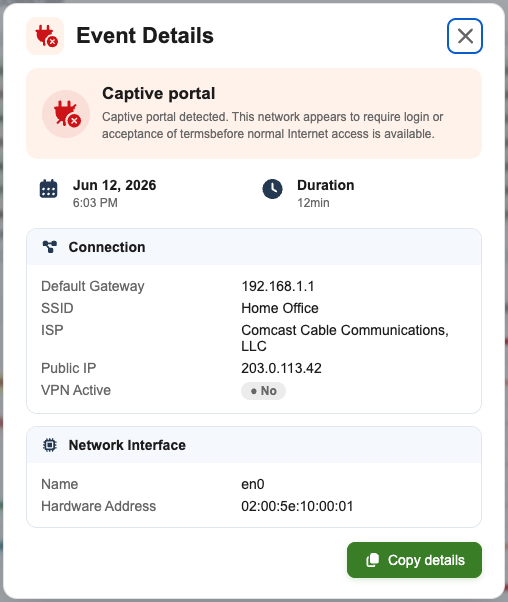
UptimeLog is designed for interruptions that have disappeared by the time you investigate them. It monitors the connection in the background, records when an outage started, how long it lasted, and which diagnostic checks failed. It gives you an internet outage monitor for Mac that can keep working while you are away from the computer.
UptimeLog starts diagnostics after its normal HTTP connectivity probe fails. The diagnostic checks cover system DNS, direct public DNS, TCP connections to public targets, a captive-portal or HTTP endpoint, and the current default gateway. The combined results can produce classifications such as Local network/router issue, DNS failure, Connectivity failure, Web access problem, Captive portal, or Brief interruption.
Those classifications describe the observed pattern. They do not prove that a specific cable, router component, game server, or ISP device is defective. For example, “gateway remained reachable while upstream checks failed” is useful evidence, while “the ISP definitely caused the outage” would go beyond what the checks establish.
The app also provides daily history and a calendar heatmap, plus PDF and CSV export for longer investigations. The existing article Internet Keeps Dropping for a Few Seconds covers the general process of tracking recurring drops; this page focuses on why a good speed test does not rule out instability.
How long should you monitor?
- Several interruptions per hour: a few hours may reveal the pattern.
- One interruption per day: monitor for several days.
- One or two interruptions per week: keep monitoring for at least one or two weeks.
- Mostly evening problems: compare several evenings, including periods when the connection normally works.
- An ISP says everything looks fine: collect a longer history with exact timestamps instead of relying on one speed test.
Remember that a sleeping Mac cannot actively monitor the connection. Interpret sleep, wake, VPN changes, and Wi-Fi-to-Ethernet changes alongside the outage history.
How to interpret the results
Use the classification as a starting point for the next check:
- Local network/router issue: public DNS and TCP failed, and the gateway was also unreachable. Investigate the Mac, Wi-Fi, Ethernet, adapter, and router path.
- DNS failure: system DNS failed while public DNS and TCP succeeded. Investigate the configured resolver or DNS settings.
- Connectivity failure: public DNS, TCP, and HTTP failed, without the more specific local-network result. Investigate the WAN, modem, ISP, or upstream route.
- Web access problem: DNS and TCP worked while the HTTP check failed. Consider web filtering, a captive portal-like response, or an issue with the tested HTTP path.
- Brief interruption: the diagnostic HTTP endpoint was healthy again after the normal probe had failed. The connection may have recovered before the deeper checks completed.
These results help localize a failure, but they cannot identify every physical cause. A service-specific failure can also occur while all general connectivity checks remain healthy.
What to record before contacting your ISP
Collect information that support can compare with router and provider records:
- exact outage timestamps and duration;
- frequency and time-of-day patterns;
- Wi-Fi or Ethernet interface;
- failure classification;
- whether games, calls, VPNs, and ordinary browsing were affected;
- whether other devices were affected;
- public-IP changes, when recorded by UptimeLog;
- tests already performed and the results;
- a multi-day PDF report.
That is more useful than saying, "My speed test is good, but the internet sometimes feels unstable." For a practical reporting checklist, read How to Document Internet Outages for Your ISP. The site also provides a sample UptimeLog PDF report.
Conclusion
A fast speed test does not prove that an internet connection is stable. It shows how the connection performed during the test. If brief failures disappear before you can investigate them, continuous monitoring provides the missing history and helps separate a local problem from DNS or upstream connectivity trouble.
Catch brief interruptions automatically
UptimeLog monitors your Mac's internet connection in the background and keeps a history of detected outages.
macOS 12+ · Notarized by Apple · Free basic monitoring