To find out how often your internet goes down, monitor continuously for a representative period and count separate outage events-not individual failed checks. Track frequency, total downtime, longest outage, and the time-of-day pattern separately.
Define what counts as one outage
Suppose a connectivity check fails every second for 20 seconds. That is usually one observed interruption containing 20 failed checks, not 20 separate outages.
A practical event has:
- a first failed check;
- one or more consecutive failures;
- a later successful check showing recovery.
The exact start and end are bounded by the check interval. If you test every five seconds, a very short interruption between checks may not be captured, and the measured boundaries have limited precision.
State the method rather than pretending the measurement is exact beyond what the checks can observe.
Measure more than outage count
Outage count alone can be misleading.
| Metric | Question it answers |
|---|---|
| Outage count | How many separate interruptions were observed? |
| Total downtime | How much observed unavailable time accumulated? |
| Longest outage | Was there one especially disruptive event? |
| Median or typical duration | Are most failures brief or sustained? |
| Time-of-day pattern | Do failures cluster during a recurring period? |
| Days affected | Is the problem constant or limited to a few dates? |
Ten five-second interruptions and one fifty-second outage have the same total downtime but feel different and may need different investigation.
Choose a representative monitoring period
Monitor long enough to see the problem repeat:
- frequent hourly drops: several hours may be sufficient;
- daily drops: use at least several days;
- weekly or unpredictable failures: use one or two weeks;
- suspected evening congestion or timed behavior: include several examples of that time window.
Avoid drawing a monthly conclusion from one unusually bad afternoon.
Read How to Monitor an Internet Connection Over Several Days for a complete observation plan.
Option 1: count failures from a Terminal log
You can save timestamped ping output:
ping 1.1.1.1 | while IFS= read -r line; do
  printf '%s %s\n' "$(date '+%Y-%m-%d %H:%M:%S')" "$line"
done | tee -a ~/Desktop/internet-monitor.log
Searching for timeout lines tells you where replies were missed:
grep -i "timeout" ~/Desktop/internet-monitor.logBut do not treat the number of timeout lines as the number of outages. You must group consecutive failures and identify when successful replies resume. You must also account for the Terminal process stopping, the Mac sleeping, shutdown, and changes between networks.
For a detailed manual method, see How to Log Internet Disconnections on a Mac.
Use automatic monitoring to count events
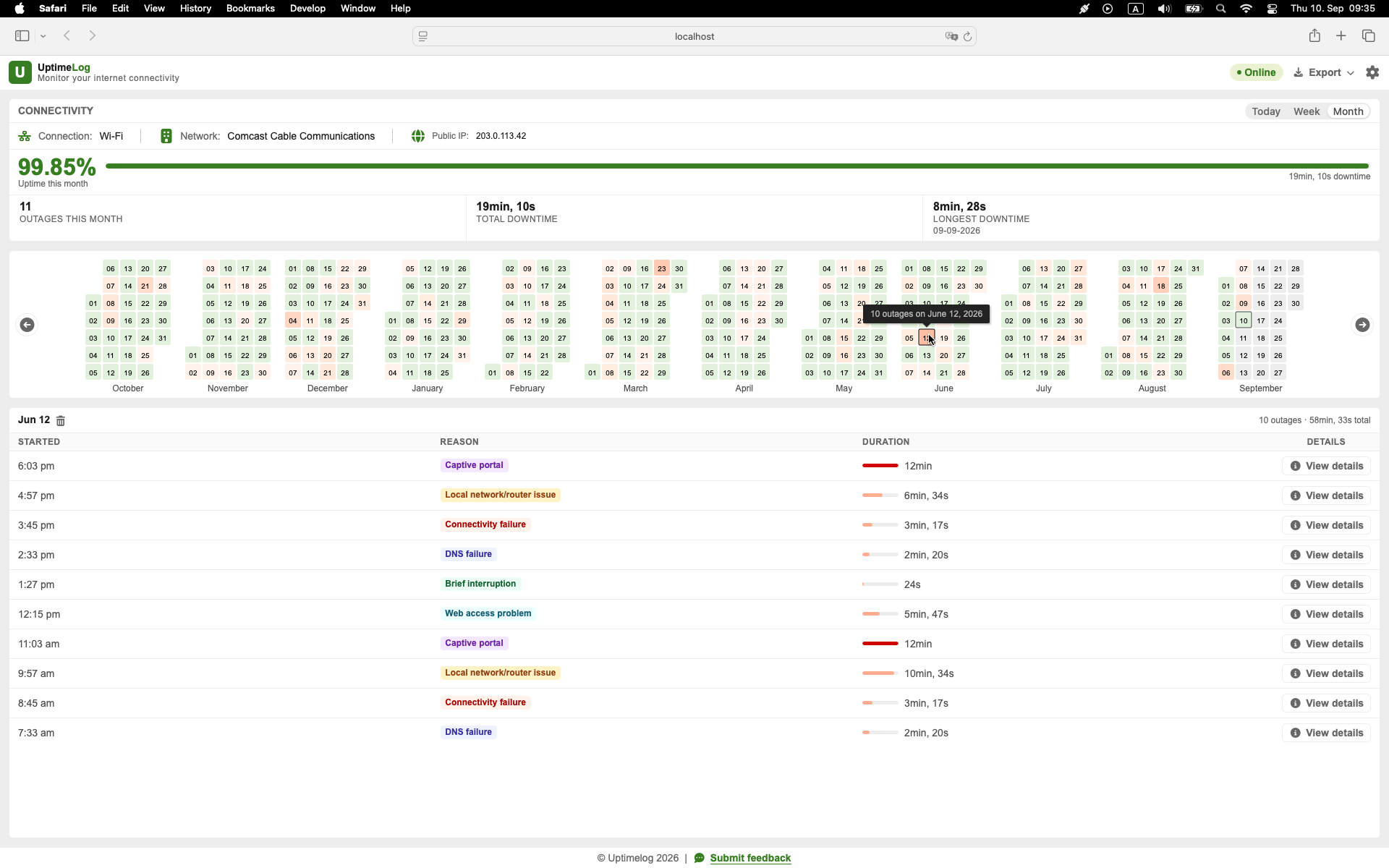
UptimeLog records detected internet interruptions as individual events with start time, recovery time, and duration. The dashboard summarizes outage count and downtime across daily, weekly, and monthly views.
The calendar heatmap adds context: it shows whether interruptions are scattered or concentrated on particular days.
Basic monitoring and the latest five days of history are free. UptimeLog Pro is a $19 one-time purchase and adds full history, PDF reports, and CSV export.
macOS 12+ · Notarized by Apple · Free basic monitoring
Compare days instead of relying on one total
Break the observation period down by date:
Monday:    0 outages
Tuesday:   6 outages, 4m 12s total
Wednesday: 1 outage, 18s total
Thursday:  0 outages
Friday: 5 outages, 3m 41s totalThis pattern raises better questions. What was different on Tuesday and Friday? Was the Mac on Wi-Fi? Was a particular adapter connected? Did other devices fail? Did the events occur at the same time?
Separate internet outages from monitoring gaps
Do not count these automatically as connection failures:
- the Mac sleeping;
- the Mac being shut down;
- the monitoring process being closed;
- moving to another network;
- disconnecting an adapter;
- intentionally disabling Wi-Fi;
- a single target choosing not to answer ping.
Your frequency result is only as trustworthy as the observation window and method.
Check whether every event represents the same problem
Two failures can look identical in a dashboard but have different causes. During representative events, compare:
- router reachability;
- one or more public destinations;
- DNS resolution;
- another device on the same network;
- Wi-Fi versus Ethernet;
- VPN on versus off.
Frequency tells you how often the symptom occurred. It does not automatically identify the component responsible.
Report frequency clearly
Prefer:
During seven monitored days, the Mac observed 12 outages on four days. Total observed downtime was 16 minutes, and the longest event lasted 5 minutes. Eight events occurred between 18:00 and 21:00.
Avoid:
My internet is always down.
The first statement can be investigated and compared after a router, modem, cable, or provider-side change.
If you plan to contact support, read How to Document Internet Outages for Your ISP.
Start counting connection drops
Use a Terminal log for a short test. Use an automatic event history when the problem occurs unpredictably or you need daily, weekly, and monthly frequency.