On a Mac, you can create a basic disconnection log with Terminal and ping. That method is free and transparent. For longer monitoring, an automatic logger can turn repeated failures into individual outage records without requiring you to analyze thousands of lines manually.
Create a basic connection log in Terminal
Open Terminal and start with a continuous ping to a public address:
ping 1.1.1.1macOS continues sending requests until you press Control-C. Replies show that the selected target responded; timeout lines show that a response did not arrive in time.
Basic output is useful while you watch it, but it is not a convenient historical log. Add a timestamp to every line and save the result:
ping 1.1.1.1 | while IFS= read -r line; do
  printf '%s %s\n' "$(date '+%Y-%m-%d %H:%M:%S')" "$line"
done | tee -a ~/Desktop/internet-disconnections.log
This command:
- runs a continuous ping;
- adds the current date and time to each line;
- displays the output in Terminal;
- appends the same output to
internet-disconnections.logon the Desktop.
Press Control-C when you want to stop monitoring.
Find failures in the saved log
Open the file in a text editor, or search it from Terminal:
grep -i "timeout" ~/Desktop/internet-disconnections.logYou can also count matching lines:
grep -ic "timeout" ~/Desktop/internet-disconnections.logThe count is not the number of outages. Ten consecutive timeout lines may represent one interruption rather than ten independent outages. To calculate outage count and duration, you must group consecutive failures and identify the first successful response afterward.
Do not rely on one target alone
A failed request to one public address does not prove that the entire internet connection was unavailable. The target, route, or treatment of ping traffic may be responsible.
For troubleshooting, compare at least two paths:
- the local router or default gateway;
- one or more public destinations.
Find the gateway:
route -n get default | awk '/gateway:/{print $2}'Then test that address in a separate Terminal window. If the gateway and public destination fail together, investigate the local connection first. If the gateway continues replying while public destinations fail, the problem is probably beyond the Mac-to-router path-but the result still is not definitive proof of an ISP fault.
For a complete interpretation guide, read Internet Keeps Dropping for a Few Seconds: How to Track the Cause.
What a useful disconnection log should contain
Raw timeout lines are only the beginning. A practical event log should contain one row per interruption:
| Field | Why it matters |
|---|---|
| Start time | Lets you compare the failure with calls, router events, and other devices. |
| Recovery time | Shows when connectivity returned. |
| Duration | Separates momentary failures from longer outages. |
| Connection type | Helps compare Wi-Fi and Ethernet behavior. |
| Public IP or provider | Can show whether the external connection changed. |
| End reason | Distinguishes recovery from shutdown or sleep when available. |
| Notes | Records whether other devices or applications were affected. |
This event-oriented format is much easier to review than a large Terminal file. It also prevents a 30-second failure from looking like 30 unrelated problems.
Account for Mac sleep and shutdown
A Mac cannot actively test the internet while it is asleep or powered off. A gap in monitoring is therefore not automatically an outage.
When reviewing a manual log, ask:
- Was the Terminal process still running?
- Did the Mac sleep?
- Was the lid closed?
- Did the network interface change?
- Was the Mac restarted?
Do not submit every period without replies as evidence of an internet failure until you have ruled out these local causes.
Automatically log internet disconnections
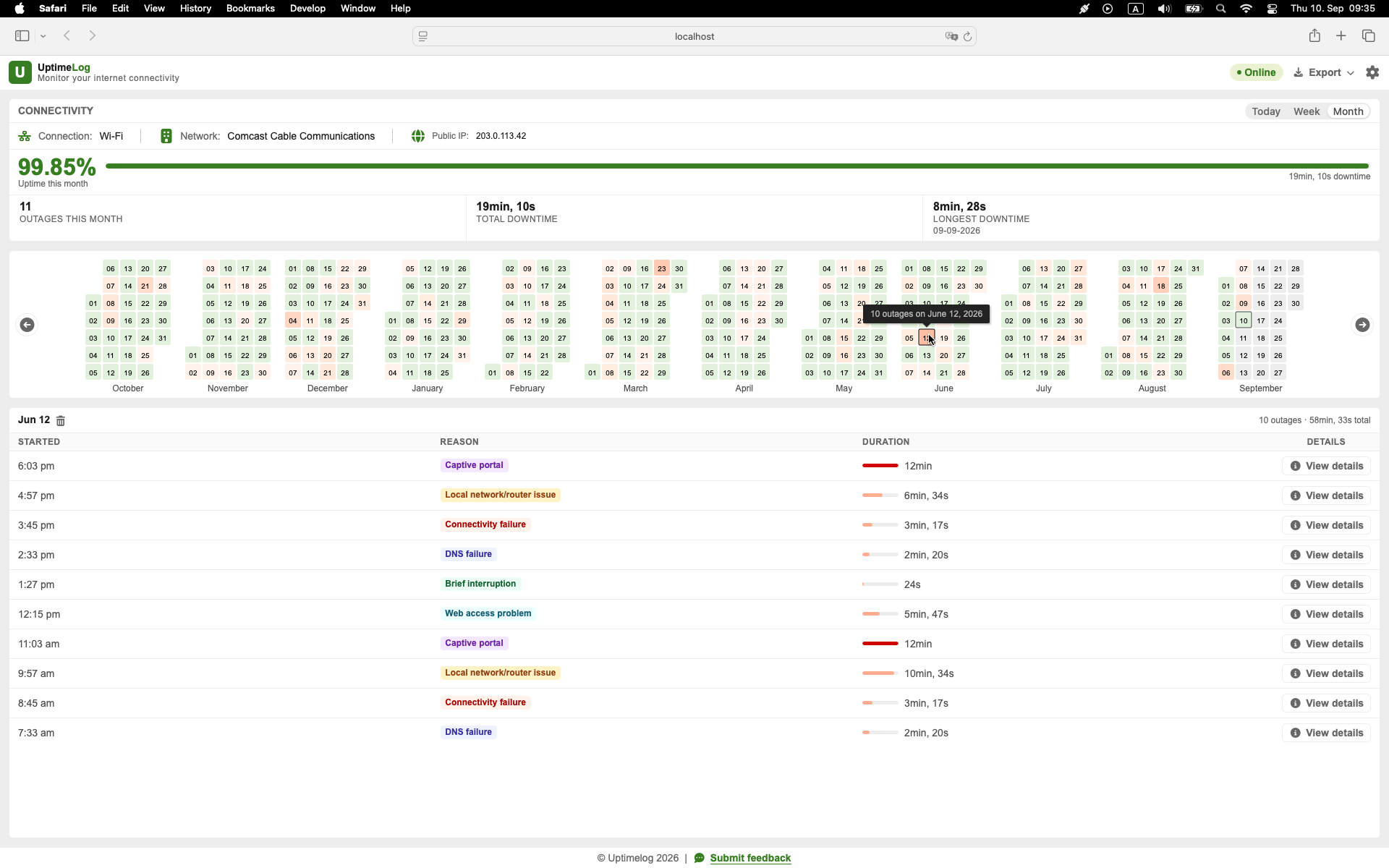
UptimeLog is an internet outage logger for Mac. It runs in the background and records detected interruptions as events with timestamps and duration, so you do not have to keep a Terminal window open and group timeout lines yourself.
The dashboard provides daily history, detailed outage entries, a calendar heatmap, and connection information. Basic monitoring and the latest five days of history are free. Pro is a $19 one-time purchase and adds full history, PDF reports, and CSV export.
macOS 12+ · Notarized by Apple · Free basic monitoring
Export the log for further analysis
A text log is fine for a quick investigation. Structured output becomes more useful when you want to:
- sort outages by start time or duration;
- calculate totals;
- compare days or weeks;
- attach records to a support ticket;
- keep the original event list alongside a written explanation.
UptimeLog Pro can export PDF and CSV reports. CSV is useful for filtering and calculation; PDF is easier to read and share as a fixed report.
An export should still be described precisely: it records connection failures observed from the Mac. It does not prove which network component caused them.
How long should you keep the log?
Choose the monitoring period based on the symptom:
- Drops several times per hour: monitor for a few hours.
- Drops once per day: collect several days.
- Random weekly issue: monitor for at least one or two weeks.
- ISP support case: try to capture multiple separate events, not only one failure.
If you need a longer observation period, see How to Monitor an Internet Connection Over Several Days.
Describe the connection problems accurately
The most defensible statement is:
At these times, this Mac could not reach the monitored internet destinations.
The cause could still be the Mac, Wi-Fi, Ethernet, router, modem, DNS, ISP, upstream network, or chosen target. Combine the event log with gateway tests, other-device checks, and router or ISP information before drawing a conclusion.
Start logging disconnections on your Mac
Use the timestamped Terminal command when you need a short, inspectable test. Use an automatic outage logger when the failures are unpredictable or you want clean event records and reports.