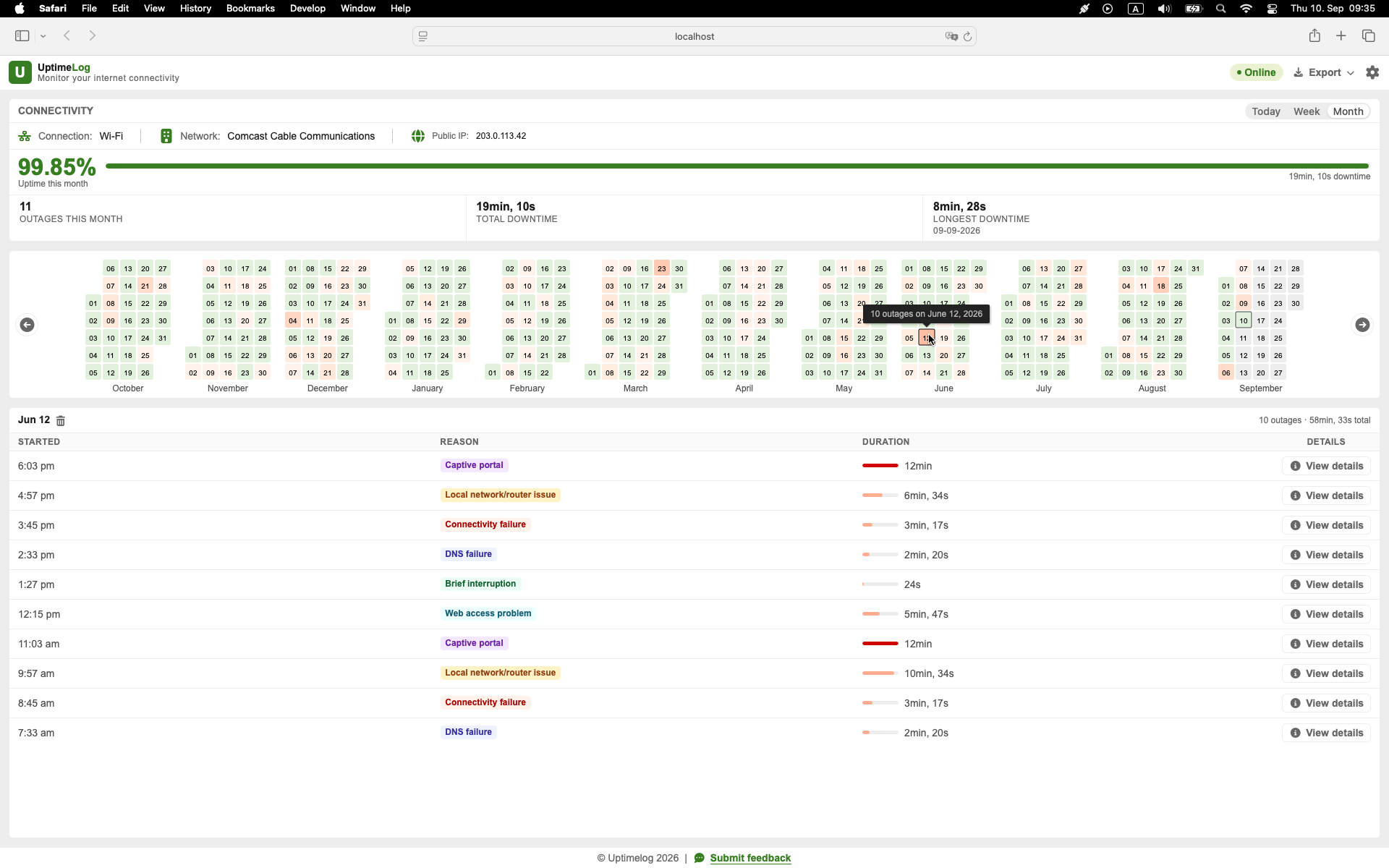
Long-term monitoring solves a different problem: it records what happens while you are not watching. To make the result useful, define what you will test, keep the setup consistent, account for Mac sleep, and review individual events as well as daily patterns.
Decide what question you are trying to answer
“Is my internet stable?” is too broad. Choose a question that the monitoring period can answer, for example:
- Does external connectivity disappear while the router remains reachable?
- Do failures happen only on Wi-Fi?
- Does the connection drop at a similar time each day?
- Are short interruptions becoming more frequent?
- Do multiple devices fail at the same time?
- Does using a particular adapter correlate with the failures?
The question determines which observations you need. Monitoring only one public destination cannot tell you everything about Wi-Fi, DNS, the router, and the ISP.
Choose a monitoring period long enough to capture the pattern
Use the symptom frequency as a starting point:
| Expected frequency | Suggested initial period |
|---|---|
| Several times per hour | 3–6 hours |
| Once or twice per day | 3–7 days |
| A few times per week | 1–2 weeks |
| Very rare or seasonal | Continue until several events are captured |
The goal is not an arbitrary number of days. It is to capture enough separate events to distinguish a pattern from one anomaly.
Define the test before you begin
Write down the initial setup:
- Mac model and macOS version;
- Wi-Fi or Ethernet;
- adapter or hub, if used;
- router and modem model;
- VPN state;
- monitoring targets or application settings;
- start and end date;
- major changes made during the test.
Avoid changing DNS, replacing the router, moving the Mac, and switching adapters all at once. If the connection improves, you will not know which change mattered. Change one variable at a time and mark the time of each change.
Option 1: save a long-running Terminal log
For a manual test, add timestamps to continuous ping output and save it:
ping 1.1.1.1 | while IFS= read -r line; do
  printf '%s %s\n' "$(date '+%Y-%m-%d %H:%M:%S')" "$line"
done | tee -a ~/Desktop/internet-monitor.log
This can capture failures while the process and Mac remain active. It is transparent and free, but multi-day use has limitations:
- the file becomes large;
- one target may not represent the whole internet;
- consecutive timeouts must be grouped into events manually;
- sleep, restart, or a closed Terminal ends or interrupts the observation;
- daily summaries and outage duration require additional processing.
For a detailed logging method, see How to Log Internet Disconnections on a Mac.
Account for sleep, wake, shutdown, and network changes
A monitoring computer cannot test the connection while it is asleep or powered off. Treat these as observation gaps, not internet outages.
During the monitoring period, note when:
- the Mac sleeps or wakes;
- the lid is closed;
- the Mac restarts;
- Wi-Fi changes to Ethernet or the reverse;
- the Mac joins another Wi-Fi network;
- a VPN connects or disconnects;
- an adapter is unplugged.
Do not disable normal power management for days without considering the consequences. It is usually better to interpret sleep correctly than to change the computer's behavior solely to make a test look continuous.
Monitor more than one layer when diagnosing the cause
If you need to locate the failure, compare:
- The router/default gateway: tests the local path from the Mac.
- A public IP address: tests reachability beyond the local network without requiring DNS.
- A domain name or web request: adds DNS and application-level behavior.
- Another device: shows whether the problem is limited to one Mac.
No individual test is perfect. The useful evidence is what fails together at the same timestamp.
Use an automatic history for multi-day monitoring
UptimeLog runs in the background on a Mac and records detected internet interruptions with start time, duration, recovery time, and connection details. This avoids keeping a Terminal window open and manually turning repeated timeout lines into outage events.
The calendar heatmap provides a compact view across days. Detailed records let you inspect the individual events behind the daily pattern.
Basic monitoring and the latest five days of history are free. UptimeLog Pro is a $19 one-time purchase and adds full history, PDF reports, and CSV export.
macOS 12+ · Notarized by Apple · Free basic monitoring
Review the results by day and by event
At the end of the period, answer two sets of questions.
For individual events:
- When did the outage start?
- How long did it last?
- Did the connection recover automatically?
- Which interface was active?
- Were other devices affected?
- Did the router remain reachable?
Across the whole period:
- How many separate outages occurred?
- What was the total observed downtime?
- What was the longest event?
- Did one day or time window stand out?
- Did the pattern change after a controlled configuration change?
Daily totals are useful, but do not hide the event list. Three ten-second interruptions and one thirty-second interruption have equal downtime but may indicate different behavior.
Avoid misleading availability percentages
Availability is meaningful only for the period in which the Mac was actually able to monitor. If the Mac slept for eight hours, do not silently treat those eight hours as confirmed uptime or downtime.
Also document:
- the start and end of the observation window;
- excluded sleep or shutdown periods;
- the monitoring method;
- the destinations or checks used;
- limitations of the test.
This context matters when you compare days or share a report.
Use the history to choose the next test
The pattern should determine your next step:
- Only Wi-Fi periods contain failures: investigate signal, interference, roaming, or the access point.
- Wi-Fi and Ethernet fail together: investigate the router, modem, ISP, or an upstream dependency.
- The router fails with public targets: investigate the local path or router.
- The router works while public targets fail: investigate beyond the router.
- Failures appear only with one adapter: test another cable, port, and adapter.
- Only DNS requests fail: investigate resolver configuration.
- Only one application fails: investigate that application or service.
For the full decision process, see Random Internet Disconnects: Router, Wi-Fi, Mac, or ISP?.
Turn the monitoring period into a useful record
Do not send someone thousands of raw ping lines without explanation. Summarize:
- monitoring dates;
- number of observed outages;
- total observed downtime;
- longest outage;
- representative timestamps;
- interface and device information;
- whether several devices were affected;
- changes made during the test;
- the detailed event log as an attachment.
A PDF is convenient for a support conversation; CSV is useful when you want to sort and analyze the individual events.
Start the multi-day test
For a short experiment, the Terminal command above may be sufficient. For unpredictable problems over days or weeks, use automatic monitoring and review both the calendar-level pattern and individual events.