Start by recording when each interruption begins, when connectivity returns and how long it lasts. Then compare several days: does the same evening window repeat, and what else was happening at those times?
First distinguish slow internet from an actual outage
A slow download, delayed conversation and disconnected call can feel similar, but require different evidence. Reduced download or upload speed means less data gets through per second. Increased latency means responses take longer; jitter means that delay varies. Packet loss means some packets never arrive. An outage means external connectivity becomes unavailable.
UptimeLog records connection interruptions. It does not measure bandwidth, continuous latency or packet-loss percentages. If websites remain reachable but everything becomes slower, run a speed or latency test during the affected window too. If external connectivity disappears, outage monitoring can record the detected event. For more on this distinction, see why a good speed test can coexist with connection drops.
Why evening-only problems are difficult to diagnose
The connection may recover before you investigate. A technician testing during business hours sees a healthy connection; an automated ISP check between incidents may find the same thing. “Everything looks fine” can accurately describe that moment while missing what happened earlier.
One 20-second drop offers little context. Several short interruptions on most evenings tell a more useful story: how often, in which window, and whether the connection recovers automatically. Support needs that history to choose the next investigation. A daytime visit cannot by itself exclude a recurring evening fault.
What can cause internet problems every evening?
A repeating time window is a clue, not a diagnosis. Plausible categories include:
- Neighborhood or ISP-segment congestion: shared capacity becomes busier. This often presents as reduced speed or higher latency, so record those separately from complete interruptions.
- Upstream or cable-line interference: intermittent signal problems can disrupt the modem connection. Compare outage times with modem events rather than assuming congestion.
- Household traffic: streaming, large uploads, backups or synchronization can saturate the connection and disrupt interactive applications.
- Neighboring Wi-Fi networks: greater wireless activity can make an already difficult radio environment worse. Compare Ethernet with Wi-Fi; Apple’s wireless-interference guidance explains common interference sources.
- Scheduled network activity: router reboots, mesh maintenance, updates, parental controls or another device’s scheduled jobs may coincide with the failures.
- Unstable equipment: a modem, router or adapter may become unreliable after hours of use or when poorly ventilated.
- External-network or DNS trouble: a recurring resolver or upstream-path problem can affect access even while the local network stays connected.
Check schedules and compare one change at a time. For example, pause an evening backup for one test window, then compare with the previous evenings. A single quiet night is useful evidence, but repeat the comparison before declaring the cause fixed.
Monitor for several consecutive days
For a daily problem, record approximately three to seven consecutive days. Monitor longer if it happens only on certain weekdays. Include the hours before, during and after the usual evening window so you can compare affected and unaffected periods.
UptimeLog can run in the background on a Mac and record detected interruptions with their start time, recovery time, duration and connection details. Keep the Mac awake and monitoring active during the comparison; sleep and stopped monitoring leave gaps. The guide to monitoring internet outages on a Mac covers setup and manual alternatives.
Keep the connection type consistent initially. Note VPN use, router changes and restarts. Later, compare a controlled Ethernet evening with a Wi-Fi evening. Otherwise a change of location or adapter can obscure the pattern you are trying to measure.
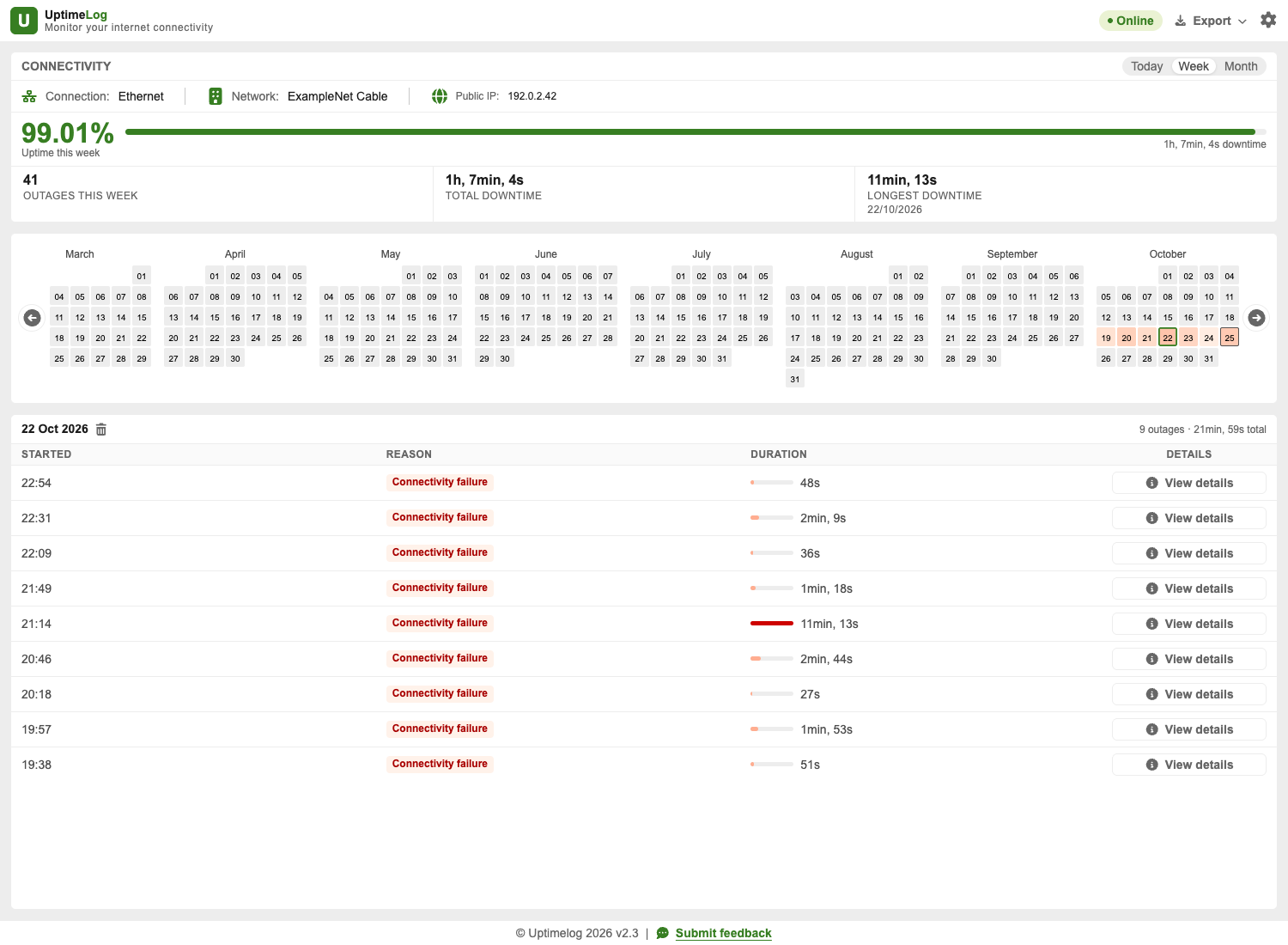
Example screenshots and report generated from synthetic monitoring data for demonstration purposes. The fictional MacBook Air was monitored from 07:00 to 23:15 each day; sleep and unmonitored periods are excluded.
The Week view covers October 19–25, 2026, with October 22 selected. Outages appear on several consecutive days. Calendar colors show outage counts, not time of day; the event timestamps reveal the evening pattern. Grey cells outside the example mean no monitoring data, not confirmed uptime. No interruptions were detected during the monitored mornings or afternoons.
Examine one affected evening
Open an affected day and inspect every interruption. Start and recovery times let you match a frozen call to an event; duration distinguishes a brief interruption from a prolonged loss of access. Include the short events as well as the longest one: repeated 20–60 second failures can repeatedly disconnect calls or games.
October 22 contains nine outages totaling 21 minutes 59 seconds. Across the whole synthetic week there are 41 outages, 1h 7m 4s total downtime, an 11m 13s longest outage and 99.01% availability. Availability uses 113h 45m of monitored time. It can still feel unreliable when the unavailable time is concentrated into repeated evening interruptions. That percentage is an example calculation, not a universal service-quality threshold.
The dashboard shows start times to the minute and has no recovery-time column or daytime timeline. The CSV provides start and recovery timestamps to the second. Use those precise times for comparisons, keeping the timezone offset: Berlin changes from summer to winter time on October 25. For shorter incidents, see how to investigate internet drops lasting a few seconds.
Check which part of the connection failed
Think of the path as Mac → network interface → Wi-Fi/Ethernet → router → DNS/external connectivity → ISP/upstream network. DNS is a service used along that path, rather than a physical hop every packet must cross.
After a failed HTTP connectivity probe, UptimeLog’s diagnostics compare gateway reachability, system DNS, public DNS, TCP and HTTP checks. These support classifications such as “Local network/router issue,” “DNS failure” and “Connectivity failure.” The resulting category helps choose further checks:
- No active route or interface: investigate the Mac, network configuration or adapter.
- Router unreachable: investigate Wi-Fi, Ethernet, cabling and the router. Some routers filter probes, so interpret a failed check with other observations.
- Router reachable, multiple external checks failing: investigate beyond the local link, including the modem, WAN connection and upstream path.
- Direct connectivity working, name resolution failing: investigate DNS, including the configured resolver and VPN settings.
A VPN can change routes, DNS and the gateway being tested. Record its state and compare with it disabled only when appropriate for your setup. The Mac, Wi-Fi, router, DNS and ISP troubleshooting guide develops these comparisons.
“Event Details” shows “Connectivity failure,” October 22 at 21:14, and “Duration” of 11min, 13s. “Connection” lists the example gateway, ISP, public IP and “VPN Active: No”; “Network Interface” identifies en5. The CSV places this event at 21:14:37–21:25:50 CEST, ending with automatic recovery.
The scenario assumes that the router remained reachable while external internet connectivity was unavailable. UptimeLog’s current detail view records “Connectivity failure” and interface information, but does not retain or display individual gateway, DNS, HTTP or external-target check results. A gateway address alone does not establish reachability, and this observation does not conclusively establish ISP responsibility. If independently confirmed, router reachability makes a purely local Wi-Fi or Ethernet disconnection less likely.
Compare the outage history with other evidence
Match exact timestamps with modem or router event logs, another device losing access, Teams or Zoom freezes, gaming disconnects, and ISP status notifications. Note equipment changes and technician visits too. On cable connections, retain T3/T4 timeout or synchronization entries near the interruptions for support to interpret. An isolated modem error does not establish the cause.
Check each log’s clock and timezone before comparing. Matching timestamps from independent sources are stronger evidence than either source alone. Save router logs before restarting equipment if a restart might clear them. If only a USB-C Ethernet connection fails, also compare the adapter-disconnection troubleshooting example.
Create a report for the ISP
Summarize the monitoring period, outage count, total downtime, longest incident and recurring window, then attach the complete timestamped event list. Include connection type, timezone, public IP and provider details when available. Add separately verified diagnostic observations and describe tests already performed.
Download the example evening-outage report
This report contains synthetic demonstration data, showing how repeated evening interruptions can be summarized for an ISP. It is an example of presentation, not evidence about your connection.
Download the example CSV outage data for the same 41 events, with second-resolution timestamps, timezone offsets, durations and connection details. For a fuller checklist, see how to document outages for your ISP.
What to tell the ISP
Keep the request specific and adapt this message to your own observations:
My connection works normally during the day but experiences repeated interruptions between approximately [start time] and [end time]. I monitored it for seven days and recorded [number] outages with exact timestamps and durations. Please compare these times with the modem and line history for my connection. I have attached the event list and noted which other devices were affected.
Add “The router remained reachable during several incidents while external connectivity failed” only if you verified that separately. For the synthetic example, the weekly count would be 41 and a suitable broad window approximately 7:30 PM–11 PM. Request a comparison with those times rather than a conclusion based solely on a healthy daytime test.
What an outage report can and cannot establish
It can document when the Mac observed connectivity failures, their recorded duration and frequency, a repeating time window, and the connection details and diagnostic classification available for each incident. Detection follows the monitoring checks; a very brief failure may occur between probes.
It cannot always identify a precise physical fault, establish that every failed request was caused by the ISP, or measure speed and latency degradation while connectivity remained available. It also cannot document outages while the Mac was asleep or UptimeLog was not running. Report monitoring gaps explicitly and keep independent reachability observations separate from the stored category.
Turn an evening symptom into a useful pattern
A single evening complaint can be missed by a later test. A week of timestamps shows whether a recurring pattern exists, which evenings differ and what to compare next. Use that record to guide controlled troubleshooting and a focused conversation with your ISP.
Keep a timestamped outage history
UptimeLog monitors internet interruptions on your Mac and keeps a timestamped history of when connectivity failed and recovered.
macOS 12+ · Notarized by Apple · Free basic monitoring